
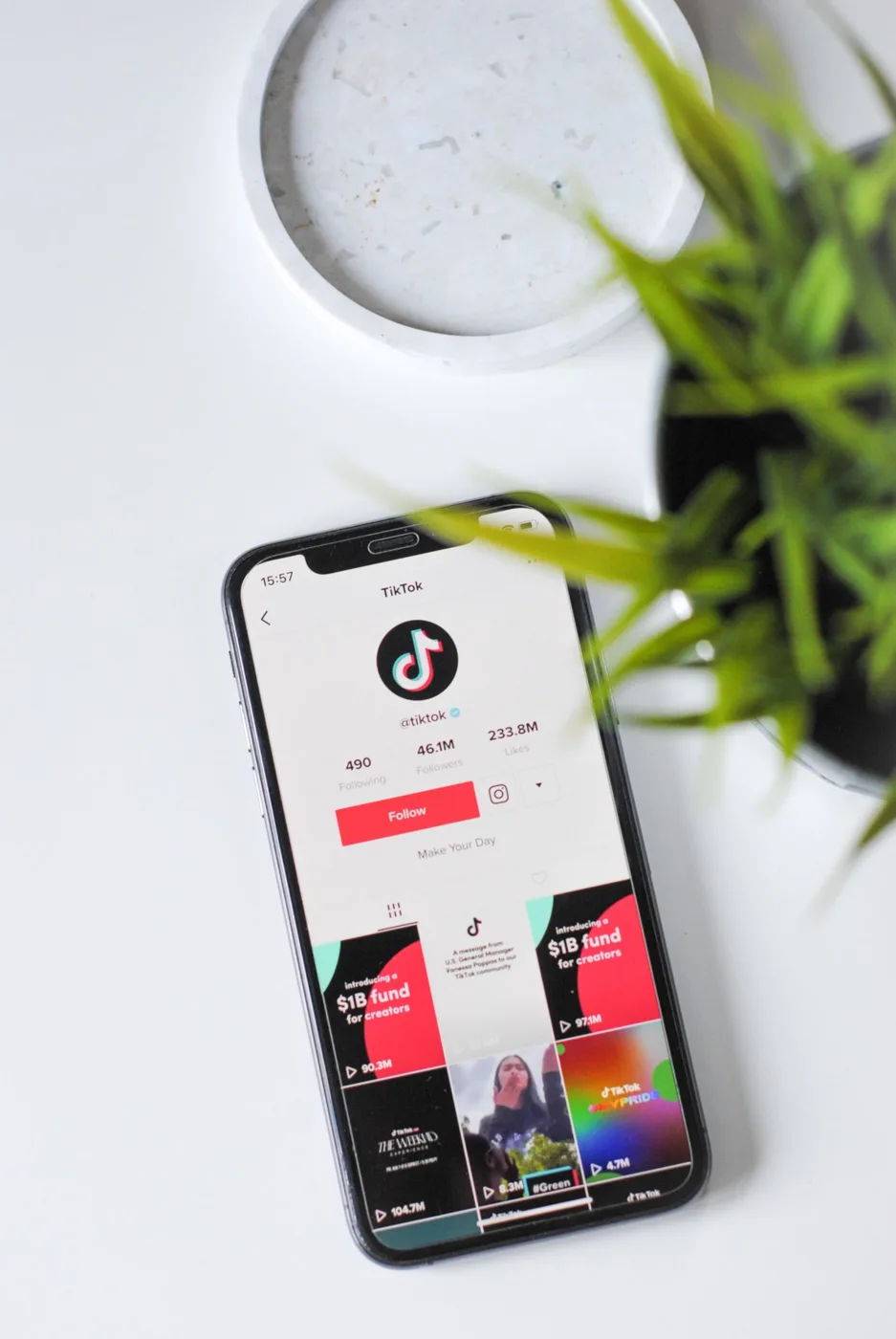
Pin a post to the top of your profile
Open a post or Reel from your own Instagram profile. Open its three-dot menu and choose the option to pin it to your profile or main grid. Return to your grid, look for the pin marker, and open the tile to make sure the caption still matches the cover. To remove it from the top row, open the same menu and choose the unpin option. The post stays on your profile.
Choose the question the first tile should answer
A framing studio has a popular clip of a cat asleep in the shop window. A first-time customer, however, wants to know whether the studio can frame an unusually deep object. A clear photo of a finished shadow box, with a side view on the next slide, does more work in the first row. Popularity alone would have picked the cat.
- What can you do for me?
- Pin one finished job that represents the work you want to take on. For the framer, show the depth of the box beside the object and explain the material choice.
- What will happen if I visit?
- Choose a post that shows the consultation. A visitor can see what to bring, where appointments happen and whether they can get an estimate first.
- How do I start?
- Pick the clearest current instructions. If a booking link or opening time changes, update the information or replace the pin.
Test the row with a new visitor
Ask someone unfamiliar with the studio to start at the profile and find out how to frame a signed shirt. Watch which tile they open and where they hesitate. If they have to read three captions before finding the booking instructions, change the cover or pin a more direct post. A short comparison carousel can show the finished frame and its construction in one place.
Run the five-point profile checklist after changing the row. Read the bio, pinned post and booking destination in order. A visitor should find the same service and the same next step in all three places.
Choose a first row by the order of a visitor’s questions
For the framing studio, the first question is whether the shop can safely frame the object. The second is what a finished piece might look like. The third is how to get an estimate. Choose one existing post that answers each job. A shadow-box photograph can show depth, a short Reel can show the consultation process, and a current booking post can explain what photographs or measurements to send. A popular picture of the shop cat may still belong in the feed without doing any of these jobs.
Open the three candidates from the profile grid. A post that makes sense in full screen can be hard to identify in the cropped tile. Look for objects and words that remain recognizable at phone size. If all the covers show nearly identical frames, a visitor may not understand why they should open one rather than another. Choose a different view or a post whose first image better signals the task.
Replace a pin without losing the information a visitor needs
Before rearranging the row, take a note of what each pinned post currently answers. An old announcement may contain the only visible directions to the studio. If you remove it, put the current directions somewhere obvious first. Open the post you want to unpin, use its menu and check the grid again before pinning its replacement. Confirm that the original is still available when you need it for reference.
Ask someone to try the journey again using a specific object, such as a signed shirt. Can they tell that the studio handles deep frames? Can they find the booking details without inspecting every caption? Watch what they do before explaining the layout. If they find the right post but hesitate at the next step, the grid is doing its job and the booking instructions need the edit.
Why is the pin option not appearing?
Check whether you are using the correct account and opening one of its own profile posts. A menu on another person’s post serves a different purpose. If the relevant profile control is still missing, verify the available options in the app before building a time-sensitive announcement around a pin.
Is pinning a post the same as pinning a comment?
They change different parts of the experience. A profile pin changes which content a visitor encounters in the grid. A pinned comment draws attention to a particular comment within a post. Decide where the visitor needs the information before choosing which control to use.